Deleting backgrounds.
This is incredibly handy for magazine cover design, when you need a transparent background. And Photoshop gives you more than one way to do it, of course. Here are two methods.
 You
may wish to delete a background and replace it with nothing--that is,
create a transparent background. Or you may wish to delete a background
and fill it with something else. Both begin the same way.
You
may wish to delete a background and replace it with nothing--that is,
create a transparent background. Or you may wish to delete a background
and fill it with something else. Both begin the same way.
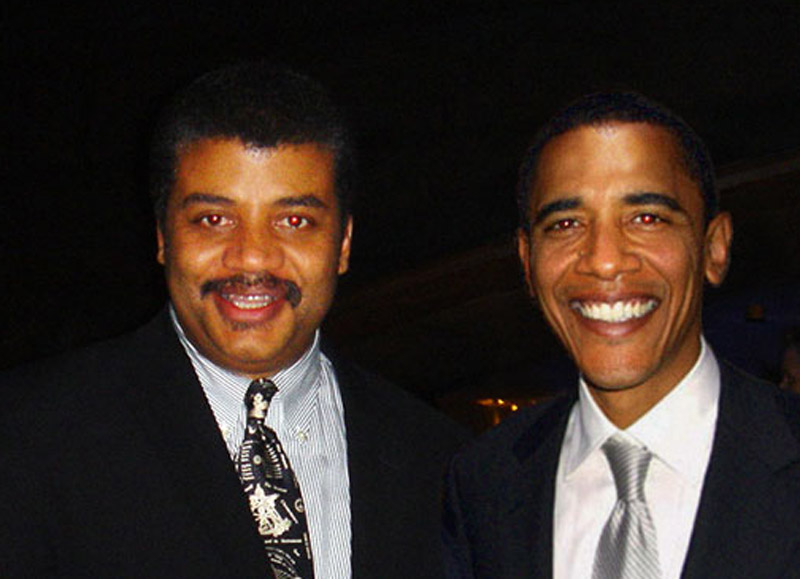
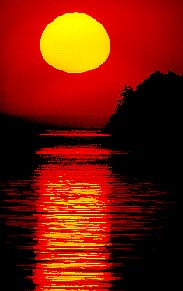
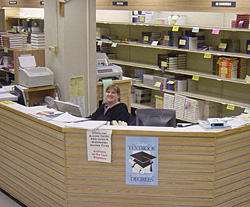
You can do this exercise with your own photos, or choose these:
remove background.
replacement background.
I. The background is nearly monochromatic.
If your background is pretty much the same color, you can just erase it.
1. Create a Duplicate the background layer from the Layers pulldown or the flyout menu at right of Layers panel.
2. Turn off the original background layer from the Layers panel by toggling off the eye icon.
3. Choose the Background Eraser from the toolbox.
4. Set the tolerance in the contextual menu at top as necessary. Start with about 25 percent.
5. Set the cursor size as necessary (use the bracket keys as a shortcut, [ and ]) and click and/or drag to erase background. You may have to adjust cursor size and tolerance several times. Begin with a large size Background Eraser.
6. To repair areas of your image you want to keep, Choose the Eraser Tool. Toggle on Erase to Background. Erase the areas to bring back the image. Clean up background by dragging Background Eraser. (Use keystroke command to zoom in or out: Command and + or - keys.)
7. You can replace a background, if you wish. Choose a photo, Open. Copy.
8. Choose New Layer from Layer pulldown or panel flyout. Paste the image onto that new layer.
9. In the Layers panel drag the background copy layer up--this puts that layer above the other layer.
9. Scale the image to fit by choosing Transform, and Scale from the Edit pulldown.
10. Working on the background copy layer, clean up background, if necssary. Use the Command-z keystroke to go back, if necessary. Yes, I know this takes a deft touch. Mousing precisely is a skill....
11. Save as jpg.
 II. Background is cluttered.
It's hard to do a good job with the Background Eraser in a colored background, because it looks for similar colors to select. So let's try a Quick Mask instead.
1. Open photo in Photoshop. Duplicate background layer, and work from background copy layer. Toggle off view of original background layer, as above.
2. Choose Quick Mask mode from bottom of toolbox.
3. Choose the Brush Tool. Choose a hard edged brush.
4. Brush in the image area you want to keep. Note it will change to a ruby red as it's masked. Try to do your best, but it doesn't have to be perfect.
5. Click off Quick Mask mode. The ruby area turns to a selection.
6. Adjust your selection more accurately using the Lasso Tool. Choose the second option (minus selection) to select areas of the mask you want to add, or vice versa.
 7. When you're ready, choose Delete. Deselect.
8. If you want to delete the foreground instead of the background, choose Inverse from the Select pulldown, and Delete.
9. If you wish, add another background as explained above.
This is incredibly handy for magazine cover design, when you need a transparent background. And Photoshop gives you more than one way to do it, of course. Here are two methods.
You
may wish to delete a background and replace it with nothing--that is,
create a transparent background. Or you may wish to delete a background
and fill it with something else. Both begin the same way.You can do this exercise with your own photos, or choose these:
remove background.
replacement background.
I. The background is nearly monochromatic.
If your background is pretty much the same color, you can just erase it.
1. Create a Duplicate the background layer from the Layers pulldown or the flyout menu at right of Layers panel.
2. Turn off the original background layer from the Layers panel by toggling off the eye icon.
3. Choose the Background Eraser from the toolbox.
4. Set the tolerance in the contextual menu at top as necessary. Start with about 25 percent.
5. Set the cursor size as necessary (use the bracket keys as a shortcut, [ and ]) and click and/or drag to erase background. You may have to adjust cursor size and tolerance several times. Begin with a large size Background Eraser.
6. To repair areas of your image you want to keep, Choose the Eraser Tool. Toggle on Erase to Background. Erase the areas to bring back the image. Clean up background by dragging Background Eraser. (Use keystroke command to zoom in or out: Command and + or - keys.)
7. You can replace a background, if you wish. Choose a photo, Open. Copy.
8. Choose New Layer from Layer pulldown or panel flyout. Paste the image onto that new layer.
9. In the Layers panel drag the background copy layer up--this puts that layer above the other layer.
9. Scale the image to fit by choosing Transform, and Scale from the Edit pulldown.
10. Working on the background copy layer, clean up background, if necssary. Use the Command-z keystroke to go back, if necessary. Yes, I know this takes a deft touch. Mousing precisely is a skill....
11. Save as jpg.
II. Background is cluttered.It's hard to do a good job with the Background Eraser in a colored background, because it looks for similar colors to select. So let's try a Quick Mask instead.
1. Open photo in Photoshop. Duplicate background layer, and work from background copy layer. Toggle off view of original background layer, as above.
2. Choose Quick Mask mode from bottom of toolbox.
3. Choose the Brush Tool. Choose a hard edged brush.
4. Brush in the image area you want to keep. Note it will change to a ruby red as it's masked. Try to do your best, but it doesn't have to be perfect.
5. Click off Quick Mask mode. The ruby area turns to a selection.
6. Adjust your selection more accurately using the Lasso Tool. Choose the second option (minus selection) to select areas of the mask you want to add, or vice versa.
7. When you're ready, choose Delete. Deselect.8. If you want to delete the foreground instead of the background, choose Inverse from the Select pulldown, and Delete.
9. If you wish, add another background as explained above.

 Consider the photo at left. Now this person probably will not like the way she looks on the beach. Who would?
 8. We need to deal with the folds of skin. Try the Patch Tool
(might be under the Healing Brush). Choose an area you'd like to
remove, such as the skinfold. Click in the middle of that area, drag to
an area you'd like to replace it with, such as clear skin above that
area.
8. We need to deal with the folds of skin. Try the Patch Tool
(might be under the Healing Brush). Choose an area you'd like to
remove, such as the skinfold. Click in the middle of that area, drag to
an area you'd like to replace it with, such as clear skin above that
area.


 b.
Change your foreground color to something that matches the rest of your
photos. One option is to use the Eyedropper tool to sample from an
actual photo, and save that to your swatches panel. To do that, with the
Eyedropper tool click on the color, go to the Swatches panel, Choose
New Color from the flyout menu at right.
b.
Change your foreground color to something that matches the rest of your
photos. One option is to use the Eyedropper tool to sample from an
actual photo, and save that to your swatches panel. To do that, with the
Eyedropper tool click on the color, go to the Swatches panel, Choose
New Color from the flyout menu at right. c. Or choose a color from the Color Picker (click on the foreground icon at bottom of toolbox).
 4. One you have everything ready, choose Output from the top right. Choose the PDF icon.
 7. Toggle off Use Auto Spacing and space as you wish. You can try my numbers for starters, see left.
 19.
Add a polished look by putting a border around each of your photos.
First, duplicate your image layer by choosing that layer in the panel
and then choosing Duplicate Layer from the flyout or from the Layers pulldown at top.
19.
Add a polished look by putting a border around each of your photos.
First, duplicate your image layer by choosing that layer in the panel
and then choosing Duplicate Layer from the flyout or from the Layers pulldown at top. 25. Save as a Photoshop pdf--or as a tiff, depending on how you'll output your poster.
 1.
Open your first photo for the montage. This will serve as your
background photo; other photos will blend into this. Ideally the photo
should have space around the center of interest to make the blend work.
Use Image Size to make the photos the size and resolution you need.
1.
Open your first photo for the montage. This will serve as your
background photo; other photos will blend into this. Ideally the photo
should have space around the center of interest to make the blend work.
Use Image Size to make the photos the size and resolution you need. 2. Open your second montage photo. Crop as necessary, and size so that it fits into the background photo as you need.
 8. Drag
horizontally on the second photo to smoothly blend the second photo
with the first. You may have to experiment with this a bit to get it
just right. Use the Command-z keystroke combination to go back.
8. Drag
horizontally on the second photo to smoothly blend the second photo
with the first. You may have to experiment with this a bit to get it
just right. Use the Command-z keystroke combination to go back. 9.
When you're ready open the third picture. Same procedure: size, crop,
copy, paste into your montage. Move, Layer Mask, gradient.
9.
When you're ready open the third picture. Same procedure: size, crop,
copy, paste into your montage. Move, Layer Mask, gradient. 12. With the chosen layer mask active (click on it from the layers panel), paint over the image to blend. Adjust hardness and opacity of brush as necessary.
 1. Save these practice images from the Photoshop practice photos file:
  11. You can paint inside a selection without first having to carefully marquee
around it, by toggling on the Layer panel's first Lock option, Lock Transparent Pixels. This limits your painting to only
the image area, like spreading glue on a spot, then spreading the glitter. Except
that was a lot messier, made Mom mad, and therefore was a lot more fun. (See painted yellow hat on illustration.)
11. You can paint inside a selection without first having to carefully marquee
around it, by toggling on the Layer panel's first Lock option, Lock Transparent Pixels. This limits your painting to only
the image area, like spreading glue on a spot, then spreading the glitter. Except
that was a lot messier, made Mom mad, and therefore was a lot more fun. (See painted yellow hat on illustration.) 15. You can save this as a Photoshop document, and preserve your layers. If
you save it in most other formats, the layers flatten. After saving as a Photoshop
document, you can save a copy as a jpg (or other format), using the Save As... command.
15. You can save this as a Photoshop document, and preserve your layers. If
you save it in most other formats, the layers flatten. After saving as a Photoshop
document, you can save a copy as a jpg (or other format), using the Save As... command. 
 Okay,
but how to fix? Used to have to work with the Clone tool, or paint in
black pupils. Tricky. We now have something called the Color Replacement
tool. This is sooooooo easy:
Okay,
but how to fix? Used to have to work with the Clone tool, or paint in
black pupils. Tricky. We now have something called the Color Replacement
tool. This is sooooooo easy:

 5. Now select the minus eyedropper tool, on the right. Click on a nicer-looking area of skin color.
 2. Choose the Horizontal Type Tool (big solid T) from the toolbox.
  4. Choose an appropriate font and type size and type "North Country Canoeing." Change to a a lighter color in the Colors or Swatches panel (If not showing, go to Window pulldown, Show Color or Swatches).
  To use Photoshop's Preset special effects, you need to Rasterize
the type (Layer pulldown, and Rasterize; see below for more
information). This converts your type from a vector graphic to a graphic
based on pixel resolution, like a photo. Now choose Styles panel (see illustration), and give something a try. Works best with larger sizes and fatter fonts. Note: type style options don't work on rasterized text.
To use Photoshop's Preset special effects, you need to Rasterize
the type (Layer pulldown, and Rasterize; see below for more
information). This converts your type from a vector graphic to a graphic
based on pixel resolution, like a photo. Now choose Styles panel (see illustration), and give something a try. Works best with larger sizes and fatter fonts. Note: type style options don't work on rasterized text. 7. Decide you don't want some text? You can delete
the letters, but better to just delete that layer. Drag it to the
little trash can icon at the bottom right of the Layers panel.
7. Decide you don't want some text? You can delete
the letters, but better to just delete that layer. Drag it to the
little trash can icon at the bottom right of the Layers panel. 
 10. Now choose the Gradient tool
(it might be under the Paint Bucket). With Radial Gradient chosen
(first icon at top), drag over type from middle to right to see sunburst
effect (you may wish to change foreground and background colors). When
ready, choose Deselect (Apple+ d). Choose the Move tool (upper right)
and drag the rainbox text to bottom center.
10. Now choose the Gradient tool
(it might be under the Paint Bucket). With Radial Gradient chosen
(first icon at top), drag over type from middle to right to see sunburst
effect (you may wish to change foreground and background colors). When
ready, choose Deselect (Apple+ d). Choose the Move tool (upper right)
and drag the rainbox text to bottom center.  8.
Note: you may have to adjust image size of your photo before Copying
and Pasting Into, so that proportions look right. Of course, you can
also Paste a photo into text written into another photo.
8.
Note: you may have to adjust image size of your photo before Copying
and Pasting Into, so that proportions look right. Of course, you can
also Paste a photo into text written into another photo.  I. Cutting and Cloning
 This
time instead of deleting an object, we moved it. Now it's time to fill
in the background. You might find this one more challenging with the
clone stamp, because the red background is not uniform, but many shades.
This
time instead of deleting an object, we moved it. Now it's time to fill
in the background. You might find this one more challenging with the
clone stamp, because the red background is not uniform, but many shades. By now you've probably already clicked on one of the boxes. Did I give you permission
to do that? See what you've done now? A hideously complex Color Picker explodes
onto the screen. You may wish to pick through the options of this Picker. I
don't pick the Picker. If, on the other hand, you want to learn what I think
is an easier alternative, Cancel and forge on. (Illustration: color picker, right of image, vs. color panel, far right panel.)
By now you've probably already clicked on one of the boxes. Did I give you permission
to do that? See what you've done now? A hideously complex Color Picker explodes
onto the screen. You may wish to pick through the options of this Picker. I
don't pick the Picker. If, on the other hand, you want to learn what I think
is an easier alternative, Cancel and forge on. (Illustration: color picker, right of image, vs. color panel, far right panel.) 1. Select the sun, as above.
 That's where some people decide they'll never use this stupid tool again. But
we smart designers know there's a lot more to the tool than that. Let's investigate.
That's where some people decide they'll never use this stupid tool again. But
we smart designers know there's a lot more to the tool than that. Let's investigate. We're
ready to take on some serious business using Photoshop: subtracting
things you don't like from an image. Skin blemishes we've already
covered: using the Healing Brush tool, simply click the blemish away!
Available by prescription! (If only.) We'll put the Healing Brush to
another good use here. And then we'll go further. Much further. Recall
that photojournalists believe it unethical to remove objects from
photos. But graphic artists? Depends, and I'm not opening a discussion
on ethics here. I merely supply you with tools. It's your choice what to
do with them. (Don't we hear pro-gun folks make the same argument?
Just sayin'.)
We're
ready to take on some serious business using Photoshop: subtracting
things you don't like from an image. Skin blemishes we've already
covered: using the Healing Brush tool, simply click the blemish away!
Available by prescription! (If only.) We'll put the Healing Brush to
another good use here. And then we'll go further. Much further. Recall
that photojournalists believe it unethical to remove objects from
photos. But graphic artists? Depends, and I'm not opening a discussion
on ethics here. I merely supply you with tools. It's your choice what to
do with them. (Don't we hear pro-gun folks make the same argument?
Just sayin'.) 2.
When you've selected the cigarette, Choose Cut from the Edit pulldown.
You could paste this cigarette somewhere else (into your favorite
politician's nose?) but, really, we want to ditch the smokes nowadays,
so I'd just skip the paste.
2.
When you've selected the cigarette, Choose Cut from the Edit pulldown.
You could paste this cigarette somewhere else (into your favorite
politician's nose?) but, really, we want to ditch the smokes nowadays,
so I'd just skip the paste. II.
Remove freckles: while I don't think freckles are so bad, some people
hate 'em. So to avoid offending anyone, let's just get rid of 'em.
II.
Remove freckles: while I don't think freckles are so bad, some people
hate 'em. So to avoid offending anyone, let's just get rid of 'em. Photoshop CS5 and above added
a new feature to make easier the process of removing objects and
filling in backgrounds. Instead of time-consuming work with a selection
tool and clone tool, let Photoshop figure it all out for you! Try this:
Photoshop CS5 and above added
a new feature to make easier the process of removing objects and
filling in backgrounds. Instead of time-consuming work with a selection
tool and clone tool, let Photoshop figure it all out for you! Try this: 1.
Choose generally the area you'd like to remove using the Lasso tool. It
works better if you include some background in your choice.
1.
Choose generally the area you'd like to remove using the Lasso tool. It
works better if you include some background in your choice. Duotone
adds a spot color to a black and white picture, with a toning effect.
This is a good option to snap up black-and-white photos while still
avoiding the cost of process color, see right. Making a duotone with a
dark second color gives an impression of a deeper, richer black and
white.
Duotone
adds a spot color to a black and white picture, with a toning effect.
This is a good option to snap up black-and-white photos while still
avoiding the cost of process color, see right. Making a duotone with a
dark second color gives an impression of a deeper, richer black and
white. Note: Duotones must be saved as EPS files to use the spot colors. Otherwise they may default to CMYK.
 Seldom-used modes
 The second format, Camera RAW,
normally is not available on compact cameras. But it is standard on
Digital Single Lens Reflex (DSLR) cameras. Images obtained in RAW
contain every pixel of sensor data unmassaged by software. But they look
uglier until pulled into an image editor such as Photoshop and
“processed” into a form you can use. And they're a lot larger. How much?
Take a look at my comparisons on left: CR2 is the Camera Raw format.
Many professionals use Camera RAW only for critical images, because
dealing with these take time and a lot of space on a camera’s memory
card.
The second format, Camera RAW,
normally is not available on compact cameras. But it is standard on
Digital Single Lens Reflex (DSLR) cameras. Images obtained in RAW
contain every pixel of sensor data unmassaged by software. But they look
uglier until pulled into an image editor such as Photoshop and
“processed” into a form you can use. And they're a lot larger. How much?
Take a look at my comparisons on left: CR2 is the Camera Raw format.
Many professionals use Camera RAW only for critical images, because
dealing with these take time and a lot of space on a camera’s memory
card.  1. First you need to open your (probably) JPG in Camera Raw. If you double-click on a RAW image in
  3. Note a great thing about Camera Raw in Bridge is that all your adjustments are right there in a handy toolbox at the right. White Balance
is at the top of the list. Apparently Adobe developers considered that
to be the first thing you’d want to correct, because if you have a
photo that’s not color corrected, it’s more difficult to get a good read
on exposure (darkness/lightness). While I don’t instinctively jump to
white balance as Job One, perhaps I should. So let’s.
3. Note a great thing about Camera Raw in Bridge is that all your adjustments are right there in a handy toolbox at the right. White Balance
is at the top of the list. Apparently Adobe developers considered that
to be the first thing you’d want to correct, because if you have a
photo that’s not color corrected, it’s more difficult to get a good read
on exposure (darkness/lightness). While I don’t instinctively jump to
white balance as Job One, perhaps I should. So let’s. How
much clipping do we have in this photo, really? Click once on a
triangle at the top of the histogram to find out. It will turn on the
clipping areas by showing them in red (or blue for shadows). In fact,
this photo shows clipping only the clip--of the pen in Patrick’s pocket.
Hardly a problem.
How
much clipping do we have in this photo, really? Click once on a
triangle at the top of the histogram to find out. It will turn on the
clipping areas by showing them in red (or blue for shadows). In fact,
this photo shows clipping only the clip--of the pen in Patrick’s pocket.
Hardly a problem. Slider note: You can go back to the default setting by double-clicking on the slider.
 In
theory we’re supposed to pull the Exposure slider until the white
clipping warning triangle goes away. In this case, though, I can’t do
that, as the sky is just too white. We’ll have to compromise.
In
theory we’re supposed to pull the Exposure slider until the white
clipping warning triangle goes away. In this case, though, I can’t do
that, as the sky is just too white. We’ll have to compromise. 7. Kelby has used the comparison of “midtones” in Photoshop’s Levels to explain how the Brightness
slider works, and I like that idea. You can use it to add a little snap
to the midtone detail, although I don’t use it as much as I do in
Photoshop.
7. Kelby has used the comparison of “midtones” in Photoshop’s Levels to explain how the Brightness
slider works, and I like that idea. You can use it to add a little snap
to the midtone detail, although I don’t use it as much as I do in
Photoshop.

 Man,
I know we’re supposed to use fill-in flash to open up the shadows on
backlit images. But what if you don’t happen to remember that? Or worse,
happen to be taking a photo of a huge baobob tree that your little
fill-in flash just won’t cover?
Man,
I know we’re supposed to use fill-in flash to open up the shadows on
backlit images. But what if you don’t happen to remember that? Or worse,
happen to be taking a photo of a huge baobob tree that your little
fill-in flash just won’t cover?
 Contrast
is the difference between the dark and light areas of a photo. A
contrasty photo is normally taken in sunlight or strong spotlight. A
flat photo is normally taken on a cloudy day or under florescent light.
(See Ross’s
Contrast
is the difference between the dark and light areas of a photo. A
contrasty photo is normally taken in sunlight or strong spotlight. A
flat photo is normally taken on a cloudy day or under florescent light.
(See Ross’s