Lesson Four: cutting, painting, erasing, color balance, fill flash
 I. Cutting and Cloning
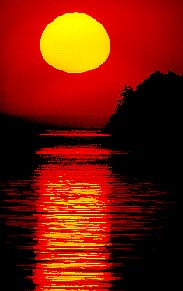
1. Download and open the sun practice photo from Class Resources. (Saved as Washington State 1982; sample illustration at right.). (Yes, I know it's small.) Wouldn't this be even better taken exactly at sunrise? Well, I'm sorry, I didn't get up that early. No matter.
2. Choose the sun, using Magic Wand (adjust tolerance) or Quick Selection tool.
Note: If using the Magic Wand, change Tolerance or Grow (from Select pulldown) if necessary to select more accurately. Or add/subtract from the Magic Wand selection by clicking with shift/option key held down. Holding down the Shift or Option key also works to add or subtract using the other selection tools.
Remember: to Deselect, choose Deselect from the Select pulldown, or keystroke combination Apple-d.
3. Choose Move tool (upper right corner).
4. Drag selected area closer to horizon.
5. Deselect. Choose Clone Stamp tool.
 This
time instead of deleting an object, we moved it. Now it's time to fill
in the background. You might find this one more challenging with the
clone stamp, because the red background is not uniform, but many shades.
This
time instead of deleting an object, we moved it. Now it's time to fill
in the background. You might find this one more challenging with the
clone stamp, because the red background is not uniform, but many shades.
A better alternative in this case might be the Paint Bucket tool, because it fills large expanses of similar color more easily. To use this, you sample a color close to the area you want to fill, then pour that color into the area using the Paint Bucket.
Remember the history panel: You can step back all the way to your original image through the history panel (top left of panel dock). Extremely useful if you've partially, but not completely, mucked things up, and so want to return to the time when everything still looked good. If only we had a history panel in real life.
Note: It's not hard to create your own reality in Photoshop, as you no doubt see by now. No wonder those aging models look so good in Vanity Fair magazine! If only perfection were so easy in real life. Warning: now you know how to do stuff news people can get into ethical hot water for. Learning the skill is not learning the judgment, and this class is more than learning the skill. Moving, adding, deleting objects: fine in advertising, a lie in news. What about blurring a background, however? Your call.
II. Painting
Well, now that we're already on the subject, let's talk some more about those messy paint tools.
Choosing a color.
Photoshop can paint in two colors: the foreground color and the background color. These default to black and white, and nestle in the lower end of the toolbox, two overlapping boxes. The front box indicates foreground color; the back box indicates, well, what do you think? The tiny version of these overlapping boxes at lower left resets the default colors, should you dreadfully muck things up and wish to turn back the clock. (Such a feature is, as woefully noted, not available in personal relationships.) The curved arrow exchanges background and foreground colors.
 By now you've probably already clicked on one of the boxes. Did I give you permission
to do that? See what you've done now? A hideously complex Color Picker explodes
onto the screen. You may wish to pick through the options of this Picker. I
don't pick the Picker. If, on the other hand, you want to learn what I think
is an easier alternative, Cancel and forge on. (Illustration: color picker, right of image, vs. color panel, far right panel.)
By now you've probably already clicked on one of the boxes. Did I give you permission
to do that? See what you've done now? A hideously complex Color Picker explodes
onto the screen. You may wish to pick through the options of this Picker. I
don't pick the Picker. If, on the other hand, you want to learn what I think
is an easier alternative, Cancel and forge on. (Illustration: color picker, right of image, vs. color panel, far right panel.)
1. Call up the Color Panel from the Window pulldown, if not on the dock already.
2. Set the color you wish to change, foreground (for painting) or background (to color your Canvas, that is, the area on which your photo reposes). To choose the foreground/background, click on the appropriate square in the Color Panel. Then choose a color from the rainbow bar, or chose RGB sliders.
Note: the Eraser tool also erases to the background color, unless you have the "Erase to Memory" toggle selected. See explanation below.
3. Altnernatively, Choose another color slider bar (if not defaulted) from the flyout menu at right of panel. The slider bars to find the color you want, RGB for the three additive primary colors. (Note additive primaries are appropriate for web pages, PowerPoint presentations, and other projected color applications; CMYK subtractive primaries are appropriate for printing applications, but we usually begin with RGB and convert later.)
3a. Still alternatively, choose the Swatches panel and choose from there. Use defaults, or choose another color system, probably Pantone coated or matte for Pantone Matching System (PMS) spot color printing, from the flyout menu. You're in college now: you make your own choices. As a professor I merely present options. And then grade your foolish choices, bwaa-ha-hah!
4. The exclamation point triangle which occasionally pops up when you use the slider bars means you've chosen a color which won't print accurately. If that bothers you greatly, click on it, and it will smartly (or often not so) choose the color nearest your combination that will print.
5. You can choose a shade of gray by sliding the three bars to the same value, or by choosing Grayscale Slider from the flyout menu, and sliding the K slider. "K" means black in printer's terminology, you probably don't recall from a recent lecture.
6. The li'l panel is an versatile tool, but it may just not have the exact color you're looking for. If you prefer to choose a color from an image, Select the Eyedropper Tool from the Tool Box and click on the color you want in your image.
7. Finally, to start over, choose the small black and white boxes at lower left of the Toolbox.
Painting a color or gradient.
This tutorial is designed for photojournalists, webmasters, and graphic artists. Ipso facto, you cannot draw worth a darn. (That's left to those much-admired yet little-understood illustrators). Nevertheless, today we are going to draw: it's photo-karaoke night here at the Photoshop, and you're on the pixellated stage.
Photoshop offers you three painting tools. You think this perfectly adequate, which proves you're not an artist. But these tools still leave us an amazing variety of ways to leave our photos looking as if they passed through a class of kindergarteners.
1. Okay, let's try these tools. Either continue working with the sun, or open another photo. It can be one of your own, or one from the practice files.
2. Choose a foreground color from the Color panel, Swatch panel, or sample from another area of the photo with the Eyedropper tool.
3. Choose the Brush tool, and brush size. Paint your image as the mood strikes you. Select Cmd-z often to Undo, or revert in the History palette. Change your brush size as necessary.
Like drawing with a potato, precisely controlling the paint tools with a mouse demands lots of practice. More than you feel like doing right now. Tom Sawyer had to do some fair persuading to get someone else to do his painting. (Don't know who Tom was? Check out his website.) Photoshop needs no persuading at all: it's always at your call, the golden retriever of pixel-land.
5. Return to that tired old Washington (sun) practice image, which you perhaps saved. Or download again.
 1. Select the sun, as above.
2. Choose new foreground and background colors, as above, something really bold.
3. Choose Gradient Tool from the toolbox (under Paint Bucket). Note the Gradient Tool offers a menu of gradients at top. Let's try the second, radial gradient.
Note: A gradient is a gradual change from one color to another.
4. Begin the cursor at the sun's center, trace out to the edge.
5. Way cool.
III. Adjusting color balance
Photographs taken outside, or with electronic flash, usually display fairly accurate color. That's because film/digital is "balanced" to that kind of light. However, photos taken under incandescent light (light bulbs) will display an orangish cast. Worse, photos taken under florescent light will display some kind of sickly green cast. Sometimes photos taken in deep shade will look bluish, and photos next to brightly colored walls may pick up a color cast from that wall. You can adjust most digital cameras to correct for some color balance problems, but you don't have to, if you know how to do it in Photoshop.
Geezer note: Color balance used to be one of the great miseries of photojournalists using color. We relied on filters over the lens, but you needed about five different kinds to match different lighting situations, and you still might not hit it right. One of the worst problems was light from multiple sources, such as daylight (5500 degrees K, blue cast) and lightbulbs (2400 degrees K, or orange cast). Even with Photoshop, though, light from multiple sources is a challenge.
1. Open up a photo with an objectionable color cast you want fix. Or use this practice photo with a yellowish cast; or this one with a florescent cast.
2. Under Layer, choose New Adjustment Layer, and Color Balance or Selective Color.
3. Choose the area you need to adjust: highlights, midtones or shadows. In the practice photo, the highlight appear to be the biggest problem.
4. Dial the sliders until the color meets your expectations. This is an art, you know, I can't tell you what's best. Often it works better to subtract a color rather than add one.
IV. Basic Erasing
You've already probably overused the Step Backward command. Let's give those poor Cmd-Option-z keys a rest. The Eraser tool sits on your Toolbox exhibiting the vague shape of a Hershey bar. Try choosing it and dragging in a photo. As you may see, it probably erases to the background color, generally white, unless you've chosen another. How useless is that?
 That's where some people decide they'll never use this stupid tool again. But
we smart designers know there's a lot more to the tool than that. Let's investigate.
That's where some people decide they'll never use this stupid tool again. But
we smart designers know there's a lot more to the tool than that. Let's investigate.
1. Open an image.
2. Choose Eraser Tool.
3. Select a size of Eraser. Erase some stuff. Should erase to white, the default background, unless you've chosen another background color.
4. Choose the Stamp Tool. Option + click to choose an area to clone. Clone around.
5. Your image is now thoroughly messed up. Try the Undo command. All you Undo is the last action. What if you want to Undo some other glitches? You could use the History Palette, okay. But then you'd go back on everything. What if you just want to take back a little bit, like after an email to your arrogant boss?
6. Try the Eraser Too!. Holding down the Option key, drag over an area you'd like to Undo. Tah-dah! It "saves to history," that is, to the original version. If you want the Eraser to Erase to History without using the Option key, check that in the top menu bar.
7. The Background Eraser will remove the color from your background.
Note: if Save to History was already selected, holding down the Option key while using the Eraser will erase to the background color.
Submit for grading: One photo of sunrise, one photo of color replacement, and one photo of sunrise as gradient. Choose a different photo for color replacement.
Quick tip! Fill-in flash.
I. Cutting and Cloning1. Download and open the sun practice photo from Class Resources. (Saved as Washington State 1982; sample illustration at right.). (Yes, I know it's small.) Wouldn't this be even better taken exactly at sunrise? Well, I'm sorry, I didn't get up that early. No matter.
2. Choose the sun, using Magic Wand (adjust tolerance) or Quick Selection tool.
Note: If using the Magic Wand, change Tolerance or Grow (from Select pulldown) if necessary to select more accurately. Or add/subtract from the Magic Wand selection by clicking with shift/option key held down. Holding down the Shift or Option key also works to add or subtract using the other selection tools.
Remember: to Deselect, choose Deselect from the Select pulldown, or keystroke combination Apple-d.
3. Choose Move tool (upper right corner).
4. Drag selected area closer to horizon.
5. Deselect. Choose Clone Stamp tool.
This
time instead of deleting an object, we moved it. Now it's time to fill
in the background. You might find this one more challenging with the
clone stamp, because the red background is not uniform, but many shades.A better alternative in this case might be the Paint Bucket tool, because it fills large expanses of similar color more easily. To use this, you sample a color close to the area you want to fill, then pour that color into the area using the Paint Bucket.
- Select the white spot again. Choose the Paint Bucket tool (might be under Gradient Tool).
- Hover the cursor just outside the white spot, holding down Option key. You should see it turn into an eyedropper tool. Sample color.
- Click in white spot to fill. Note: You can also sample the color with the Eyedropper tool from the toolbox.
Remember the history panel: You can step back all the way to your original image through the history panel (top left of panel dock). Extremely useful if you've partially, but not completely, mucked things up, and so want to return to the time when everything still looked good. If only we had a history panel in real life.
Note: It's not hard to create your own reality in Photoshop, as you no doubt see by now. No wonder those aging models look so good in Vanity Fair magazine! If only perfection were so easy in real life. Warning: now you know how to do stuff news people can get into ethical hot water for. Learning the skill is not learning the judgment, and this class is more than learning the skill. Moving, adding, deleting objects: fine in advertising, a lie in news. What about blurring a background, however? Your call.
II. Painting
Well, now that we're already on the subject, let's talk some more about those messy paint tools.
Choosing a color.
Photoshop can paint in two colors: the foreground color and the background color. These default to black and white, and nestle in the lower end of the toolbox, two overlapping boxes. The front box indicates foreground color; the back box indicates, well, what do you think? The tiny version of these overlapping boxes at lower left resets the default colors, should you dreadfully muck things up and wish to turn back the clock. (Such a feature is, as woefully noted, not available in personal relationships.) The curved arrow exchanges background and foreground colors.
By now you've probably already clicked on one of the boxes. Did I give you permission
to do that? See what you've done now? A hideously complex Color Picker explodes
onto the screen. You may wish to pick through the options of this Picker. I
don't pick the Picker. If, on the other hand, you want to learn what I think
is an easier alternative, Cancel and forge on. (Illustration: color picker, right of image, vs. color panel, far right panel.)1. Call up the Color Panel from the Window pulldown, if not on the dock already.
2. Set the color you wish to change, foreground (for painting) or background (to color your Canvas, that is, the area on which your photo reposes). To choose the foreground/background, click on the appropriate square in the Color Panel. Then choose a color from the rainbow bar, or chose RGB sliders.
Note: the Eraser tool also erases to the background color, unless you have the "Erase to Memory" toggle selected. See explanation below.
3. Altnernatively, Choose another color slider bar (if not defaulted) from the flyout menu at right of panel. The slider bars to find the color you want, RGB for the three additive primary colors. (Note additive primaries are appropriate for web pages, PowerPoint presentations, and other projected color applications; CMYK subtractive primaries are appropriate for printing applications, but we usually begin with RGB and convert later.)
3a. Still alternatively, choose the Swatches panel and choose from there. Use defaults, or choose another color system, probably Pantone coated or matte for Pantone Matching System (PMS) spot color printing, from the flyout menu. You're in college now: you make your own choices. As a professor I merely present options. And then grade your foolish choices, bwaa-ha-hah!
4. The exclamation point triangle which occasionally pops up when you use the slider bars means you've chosen a color which won't print accurately. If that bothers you greatly, click on it, and it will smartly (or often not so) choose the color nearest your combination that will print.
5. You can choose a shade of gray by sliding the three bars to the same value, or by choosing Grayscale Slider from the flyout menu, and sliding the K slider. "K" means black in printer's terminology, you probably don't recall from a recent lecture.
6. The li'l panel is an versatile tool, but it may just not have the exact color you're looking for. If you prefer to choose a color from an image, Select the Eyedropper Tool from the Tool Box and click on the color you want in your image.
7. Finally, to start over, choose the small black and white boxes at lower left of the Toolbox.
Painting a color or gradient.
This tutorial is designed for photojournalists, webmasters, and graphic artists. Ipso facto, you cannot draw worth a darn. (That's left to those much-admired yet little-understood illustrators). Nevertheless, today we are going to draw: it's photo-karaoke night here at the Photoshop, and you're on the pixellated stage.
Photoshop offers you three painting tools. You think this perfectly adequate, which proves you're not an artist. But these tools still leave us an amazing variety of ways to leave our photos looking as if they passed through a class of kindergarteners.
- Your Pencil tool leaves hardish edges.
- Your Brush tool leaves softish edges. Click on the airbrush icon at top menu to turn the tool into an ersatz airbrush. Adjust flow from the menu bar.
- Your Color Replacement tool samples the color under the crosshairs and replaces it with the foreground color.
1. Okay, let's try these tools. Either continue working with the sun, or open another photo. It can be one of your own, or one from the practice files.
2. Choose a foreground color from the Color panel, Swatch panel, or sample from another area of the photo with the Eyedropper tool.
3. Choose the Brush tool, and brush size. Paint your image as the mood strikes you. Select Cmd-z often to Undo, or revert in the History palette. Change your brush size as necessary.
Shortcuts: To change the size of a brush, use the [ or ] keys. To step backward, choose Option-Command-z.4. For more control over your painting, choose other options from the topmost menu bar. The Opacity (for paintbrush) or Pressure (for airbrush) slider controls the translucence of your color. Other Modes are worth experimenting with, if you're the curious sort with time to kill.
Like drawing with a potato, precisely controlling the paint tools with a mouse demands lots of practice. More than you feel like doing right now. Tom Sawyer had to do some fair persuading to get someone else to do his painting. (Don't know who Tom was? Check out his website.) Photoshop needs no persuading at all: it's always at your call, the golden retriever of pixel-land.
5. Return to that tired old Washington (sun) practice image, which you perhaps saved. Or download again.
Geezer note: I never realized when I took this picture of Washington's Birch Bay in pre-digital days that I'd end up seeing it abused ad nauseam as a class practice photo. What an pathetic fate. Kind of like the Doors as elevator music.
a. Choose the Quick Selection tool, or your preferred selection tool. Select the sun again.
b. In the Color Panel, choose a color strikingly different from the normal yellow.
c. Choose the Airbrush or Paintbrush tool, and drag. Note your color stays within the selected boundary. Very tidy.
Other ways to fill:
- The Color Replacement tool samples the color underlying the plus sign in the paintbrush, and replaces it with your chosen foreground color as you drag.
- The Paint Bucket tool, as we used above, replaces a solid color. If you do not select an area first, the Paint Bucket tool will fill all areas of an adjacent color, similar to the selection process of the Magic Wand Tool. Control this with the Tolerance option.
- You also can quickly fill a selected area by choosing Option-Delete (foreground color) or Cmd-Delete (background color). I really don't know why we need so many ways to do one little thing in Photoshop.
1. Select the sun, as above.2. Choose new foreground and background colors, as above, something really bold.
3. Choose Gradient Tool from the toolbox (under Paint Bucket). Note the Gradient Tool offers a menu of gradients at top. Let's try the second, radial gradient.
Note: A gradient is a gradual change from one color to another.
4. Begin the cursor at the sun's center, trace out to the edge.
5. Way cool.
III. Adjusting color balance
Photographs taken outside, or with electronic flash, usually display fairly accurate color. That's because film/digital is "balanced" to that kind of light. However, photos taken under incandescent light (light bulbs) will display an orangish cast. Worse, photos taken under florescent light will display some kind of sickly green cast. Sometimes photos taken in deep shade will look bluish, and photos next to brightly colored walls may pick up a color cast from that wall. You can adjust most digital cameras to correct for some color balance problems, but you don't have to, if you know how to do it in Photoshop.
Geezer note: Color balance used to be one of the great miseries of photojournalists using color. We relied on filters over the lens, but you needed about five different kinds to match different lighting situations, and you still might not hit it right. One of the worst problems was light from multiple sources, such as daylight (5500 degrees K, blue cast) and lightbulbs (2400 degrees K, or orange cast). Even with Photoshop, though, light from multiple sources is a challenge.
1. Open up a photo with an objectionable color cast you want fix. Or use this practice photo with a yellowish cast; or this one with a florescent cast.
2. Under Layer, choose New Adjustment Layer, and Color Balance or Selective Color.
3. Choose the area you need to adjust: highlights, midtones or shadows. In the practice photo, the highlight appear to be the biggest problem.
4. Dial the sliders until the color meets your expectations. This is an art, you know, I can't tell you what's best. Often it works better to subtract a color rather than add one.
IV. Basic Erasing
You've already probably overused the Step Backward command. Let's give those poor Cmd-Option-z keys a rest. The Eraser tool sits on your Toolbox exhibiting the vague shape of a Hershey bar. Try choosing it and dragging in a photo. As you may see, it probably erases to the background color, generally white, unless you've chosen another. How useless is that?
That's where some people decide they'll never use this stupid tool again. But
we smart designers know there's a lot more to the tool than that. Let's investigate.1. Open an image.
2. Choose Eraser Tool.
3. Select a size of Eraser. Erase some stuff. Should erase to white, the default background, unless you've chosen another background color.
4. Choose the Stamp Tool. Option + click to choose an area to clone. Clone around.
5. Your image is now thoroughly messed up. Try the Undo command. All you Undo is the last action. What if you want to Undo some other glitches? You could use the History Palette, okay. But then you'd go back on everything. What if you just want to take back a little bit, like after an email to your arrogant boss?
6. Try the Eraser Too!. Holding down the Option key, drag over an area you'd like to Undo. Tah-dah! It "saves to history," that is, to the original version. If you want the Eraser to Erase to History without using the Option key, check that in the top menu bar.
7. The Background Eraser will remove the color from your background.
Note: if Save to History was already selected, holding down the Option key while using the Eraser will erase to the background color.
Submit for grading: One photo of sunrise, one photo of color replacement, and one photo of sunrise as gradient. Choose a different photo for color replacement.
Quick tip! Fill-in flash.



No comments:
Post a Comment